
Create New Template
Start fresh with a template playground that contains a minimal template structure and a skeleton directory.
Perfect for:
- Learning template syntax and structure
- Prototyping new template ideas
- Quick experiments without local setup
- Understanding how template steps work
Since Create New Template provides only a minimal starting point, you can load existing templates using Load Template Directory.
-
Select Create New Template in the Template Editor.
-
Create a folder for the template either locally or in your local version of the
software-templatesrepository. Then select Select to populate the minimal template files. -
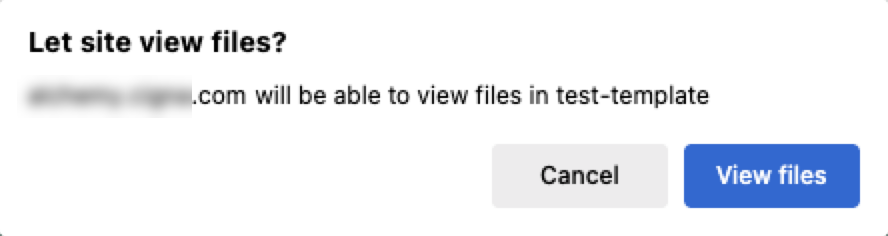
After the folder is populated, two messages appear to view and save the template files. Select View files and then Save Changes.
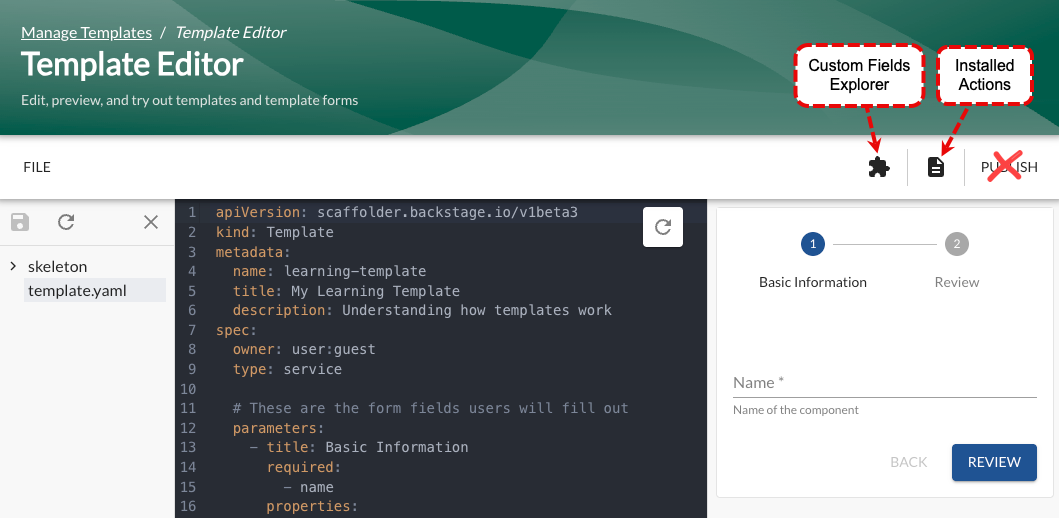
The Template Editor interface appears.
 Note
NoteThe Publish feature does not work.
-
Select the
template.yamlfile to the left of the YAML editor. -
Make changes to the YAML file and use the form to the right of the YAML editor to test the template.
-
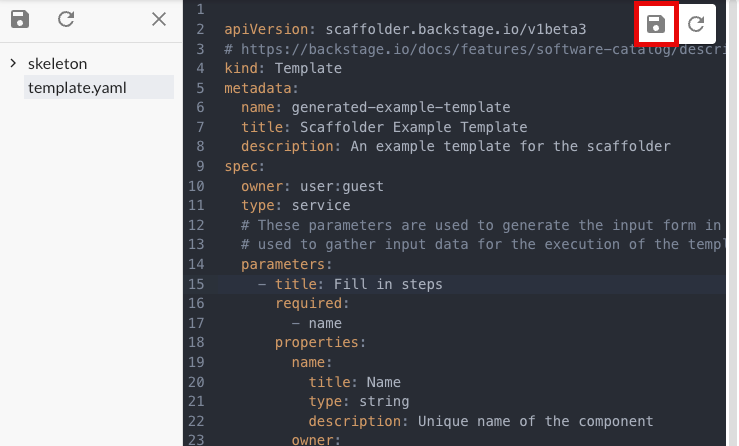
Select the Save icon to preserve your work as you develop. This updates the files in the original directory location.
-
When your template is ready for broader use, create a
proddirectory in thesoftware-templatesrepository containing the template, then submit a pull request for review before promotion to the production environment. See Get your template into the prod environment.