
Images and Screenshots
Learn how to capture and describe visual content to ensure clarity, consistency, and accessibility.
Image guidelines
- Use 100% zoom when capturing screenshots.
- Adjust image dimensions in an image editor.
- Limit image width to 1200 pixels.
- Use consistent image sizes throughout your documentation.
Callouts
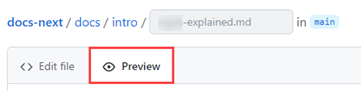
Use a red rectangle to highlight areas of interest in a screenshot. Follow these specifications:
| Property | Specification |
|---|---|
| Shape | Rectangle (avoid circles) |
| Color | #E80808 (Hex) or 232, 8, 8 (RGB) |
| Line width | 3px (use 5px if image width > 960px) |
| Line stroke | Solid |
Alt-text guidelines
Good alt-text describes what the image shows, not what it means. Write alt-text that helps a reader who cannot see the image understand its content and purpose.
All images
Start alt-text with the image type to signal the content immediately.
"Screenshot of…"
"Diagram showing…"
Diagrams
Focus on the key concepts and relationships the diagram illustrates. Avoid describing every visual element, such as colors, shapes, or layout.
"Diagram showing a Logic App using the detect-sentiment action to invoke the Text Analytics service."
UI screenshots
Identify the interface, the specific area or element in focus, and the state shown — for example, an open menu, a selected option, or a completed form.
Pattern: Screenshot of the [product or page name] [screen or panel name] showing [element or state].
"Screenshot of the Azure portal showing the Resource Groups panel with the Add button highlighted."
"Screenshot of the VS Code Source Control panel showing a staged file ready to commit."
CLI screenshots
Identify the terminal environment, the command entered, and the relevant output. Include enough detail for the reader to understand what the command does and what a successful result looks like.
Pattern: Screenshot of [terminal or environment] showing the [command] command and its output.
"Screenshot of the Azure Cloud Shell using the PowerShell environment to execute the Get-User command and return a list of user accounts."
"Screenshot of a macOS Terminal window showing the docker ps command and a list of running containers."
If the image shows an error state or a warning message, include that in the alt-text. For example: "Screenshot of the Azure portal showing a validation error on the Subscription field."